

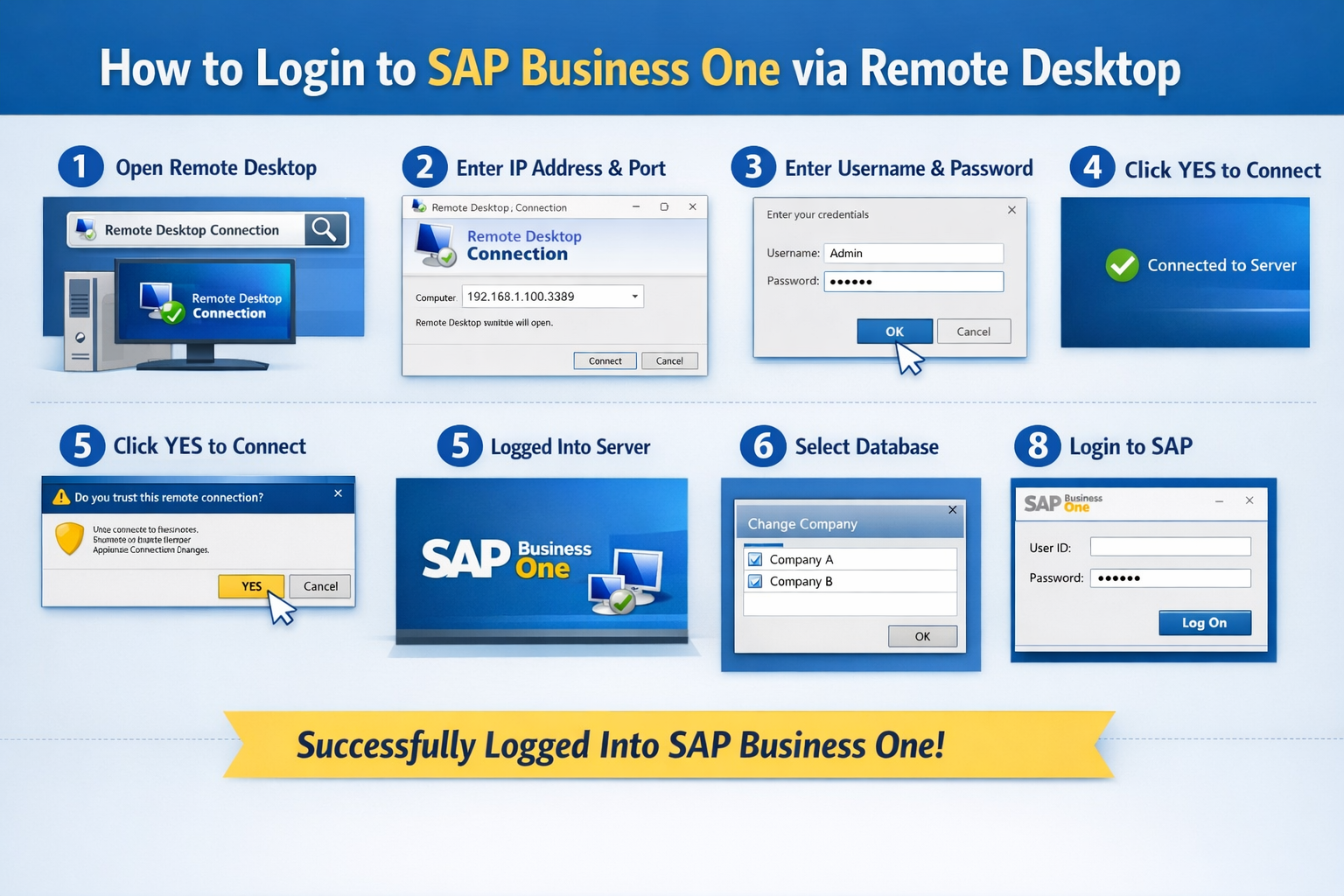
Accessing SAP Business One through Remote Desktop is simple when you follow the correct steps. This guide will help users log in smoothly and securely.
Step 1: Open Remote Desktop Connection
Click on the Windows Start button and search for Remote Desktop Connection.
Step 2: Launch the Application
Double-click on Remote Desktop Connection to open the login window.
Step 3: Enter Server Details
Type the Server IP Address and Port Number, then click Connect.
Step 4: Confirm Connection
Click Connect again when prompted.
Step 5: Enter Login Credentials
Provide the Username and Password to access the server, then click OK.
Tip: Make sure there are no extra spaces when copying and pasting the password.
Step 6: Accept Security Prompt
Click Yes if a security confirmation window appears.
Step 7: Server Login Successful
You have now successfully logged into the server.
Step 8: Open SAP Business One
Use the search bar or locate the SAP Business One icon on the desktop and double-click to open it.
Step 9: Change Company
Click on Change Company to view the list of available databases.
Step 10: Select Database & Login
Choose the required Database, then enter your User ID and Password.
Step 11: Access SAP Business One
You have successfully logged into SAP Business One.