

Keeping your SUSE Linux Enterprise Server (SLES) updated is essential for system stability, security, and performance — especially in enterprise environments like SAP servers.
This guide explains the safe and standard method to patch a SUSE server using zypper.
📌 Why Patch a SUSE Server?
Regular patching helps you:
✔️ Improve system security
✔️ Fix bugs and vulnerabilities
✔️ Maintain SAP & enterprise compatibility
✔️ Improve performance and stability
⚠️ Best Practice Before Patching
Before starting any patch activity:
- Take a full server backup or VM snapshot
- Ensure maintenance window availability
- Check disk space
- Confirm repository connectivity
- Inform application users (if production server)
🔄 Step 1 — Reboot the Server (Recommended)
Start from a clean system state:
After reboot, log in as root or sudo user.
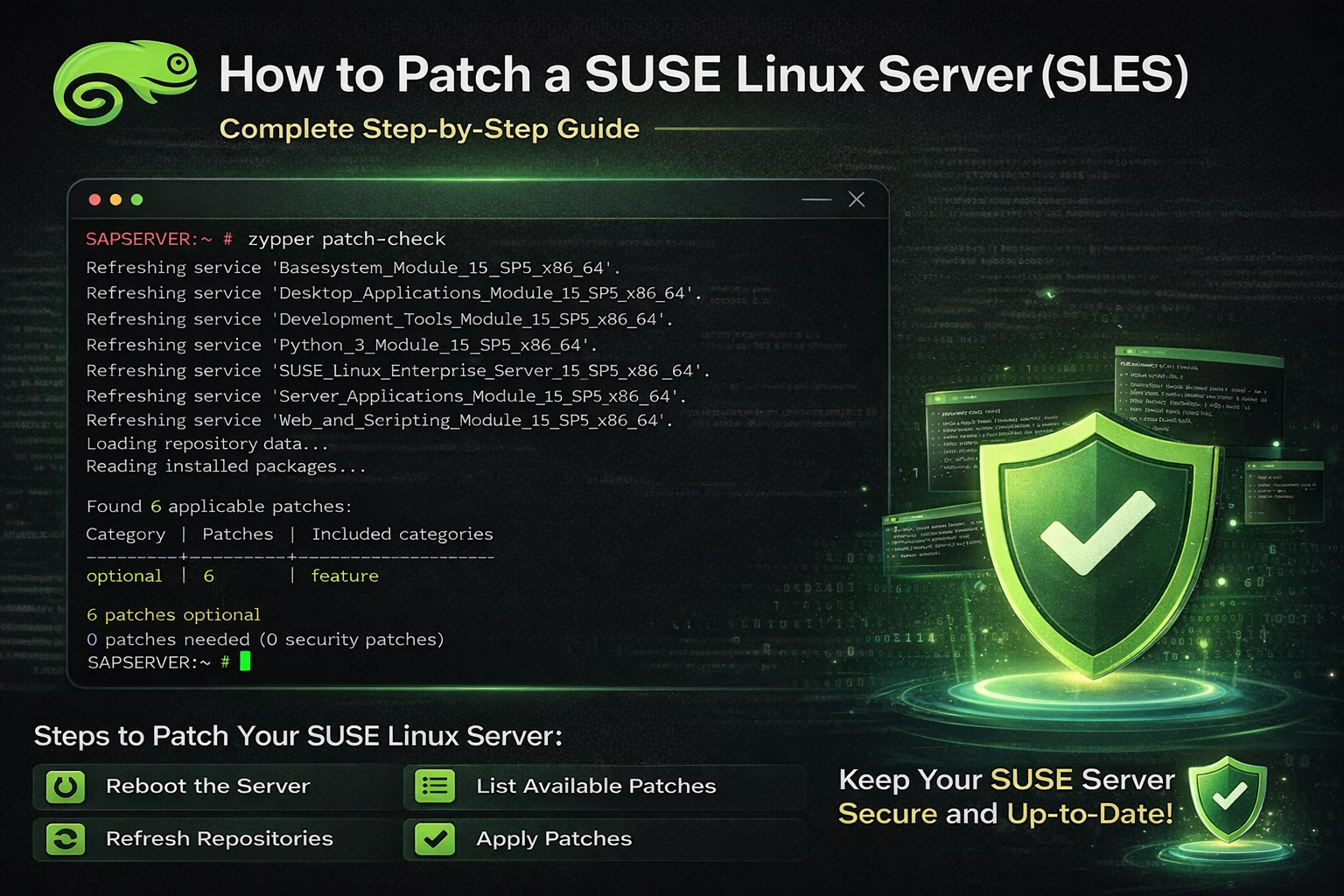
🔍 Step 2 — Check Available Patches
Use the following command to check patches:
This command shows:
- Security patches
- Recommended patches
- Optional patches
Example output:
🔄 Step 3 — Refresh Repositories
Always refresh repositories before installing updates:
⬆️ Step 4 — Apply Recommended & Security Patches
Install standard patches using:
This will:
✔️ Install security fixes
✔️ Apply recommended updates
✔️ Skip optional feature patches
⭐ Step 5 — Check Patch Status After Update
After patching, verify status:
Example (After Successful Patching)
From your server:
✔️ What This Means
- No security or critical patches pending
- Server is fully updated
- Only optional feature updates remain
This is the ideal state for production servers.
🔁 Step 6 — Reboot After Patching
If kernel or system components were updated:
🧪 Step 7 — Verify System Health
Check system uptime:
Check running kernel:
🏢 SAP Server Patching Best Practices
If this is an SAP environment:
✔️ Stop SAP services before patching (as per policy)
✔️ Follow SAP maintenance window
✔️ Verify SAP OS compatibility notes
✔️ Take VM snapshot before patching
🚀 Recommended SUSE Patch Workflow
🧾 Conclusion
Regular SUSE server patching ensures:
- Maximum security
- Stable enterprise workloads
- Better system performance
- Compliance with IT standards
If your patch check shows:
🎉 Your server is fully up to date.